12 — 3D 文本
介绍
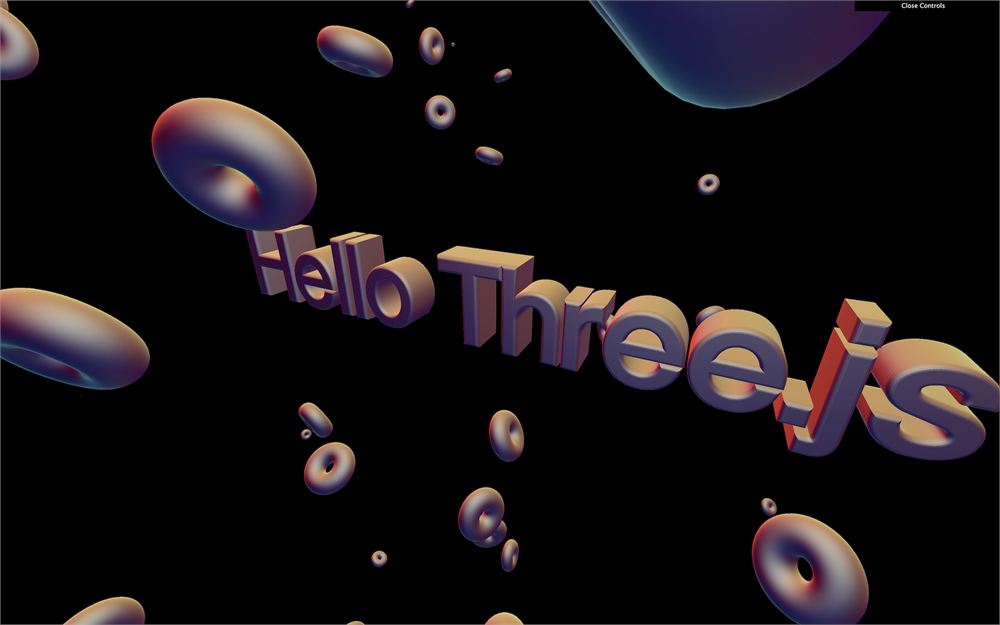
我们已经掌握了足够的基础知识来创建一些内容了。作为我们的第一个项目,我们将重现 ilithya 用她炫酷的作品集 https://www.ilithya.rocks/ 所做的东西,在场景中央放一个大大的 3D 文本,周围漂浮着物体。
这个作品集是你在学习 Three.js 早期就能做到什么的绝佳例子。它简单、高效,看起来也很棒。
Three.js 已经通过 TextGeometry 类支持 3D 文本几何体。问题是你必须指定一个字体,而且这个字体必须是一种叫做 typeface 的特殊 json 格式。
我们不会谈论许可问题,但除非用于个人用途,否则你必须拥有使用该字体的权利。
如何获取 typeface 字体
有很多方式可以获得这种格式的字体。首先,你可以用这样的转换器转换你的字体:https://gero3.github.io/facetype.js/。你需要提供一个文件,然后点击转换按钮。
你也可以在位于 /node_modules/three/examples/fonts/ 文件夹里的 Three.js 示例中找到字体。你可以把这些字体拿出来放到 /static/ 文件夹里,或者你也可以直接在 JavaScript 文件中导入它们,因为它们都是 json,而且在 Vite 里 .json 文件像 .js 文件一样被支持:
import typefaceFont from 'three/examples/fonts/helvetiker_regular.typeface.json'我们将结合这两种技术:打开 /node_modules/three/examples/fonts/,取出 helvetiker_regular.typeface.json 和 LICENSE 文件,然后把它们放进 /static/fonts/ 文件夹(你需要自己创建)。
这个字体现在只需在基础 URL 末尾写上 /fonts/helvetiker_regular.typeface.json 就能访问到了。
加载字体
要加载字体,我们必须使用一个名为 FontLoader 的加载器类。
这个类不在 THREE 变量里。我们需要像课程前面导入 OrbitControls 类那样导入它:
import { FontLoader } from 'three/examples/jsm/loaders/FontLoader.js'这个加载器的工作原理和 TextureLoader 一样。在 textureLoader 那段代码之后添加以下代码(如果你用的是其他字体,别忘了修改路径):
/**
 * Fonts
 */
const fontLoader = new FontLoader()

fontLoader.load(
    '/fonts/helvetiker_regular.typeface.json',
    (font) =>
    {
        console.log('loaded')
    }
)
你应该会在控制台里看到 'loaded'。如果没有,检查之前的步骤,并留意控制台里有没有错误。
现在我们通过函数里的 font 变量就能访问这个字体了。和 TextureLoader 不同,我们必须把接下来的代码写在这个成功回调函数里面。
创建几何体
正如我们之前所说,我们要使用 TextGeometry。
和 FontLoader 一样,我们需要导入它:
import { TextGeometry } from 'three/examples/jsm/geometries/TextGeometry.js'注意 文档页面 上的示例代码;那里的数值比我们场景里的大得多。
确保把你的代码写在成功回调函数里面:
fontLoader.load(
    '/fonts/helvetiker_regular.typeface.json',
    (font) =>
    {
        const textGeometry = new TextGeometry(
            'Hello Three.js',
            {
                font: font,
                size: 0.5,
                depth: 0.2,
                curveSegments: 12,
                bevelEnabled: true,
                bevelThickness: 0.03,
                bevelSize: 0.02,
                bevelOffset: 0,
                bevelSegments: 5
            }
        )
        const textMaterial = new THREE.MeshBasicMaterial()
        const text = new THREE.Mesh(textGeometry, textMaterial)
        scene.add(text)
    }
)
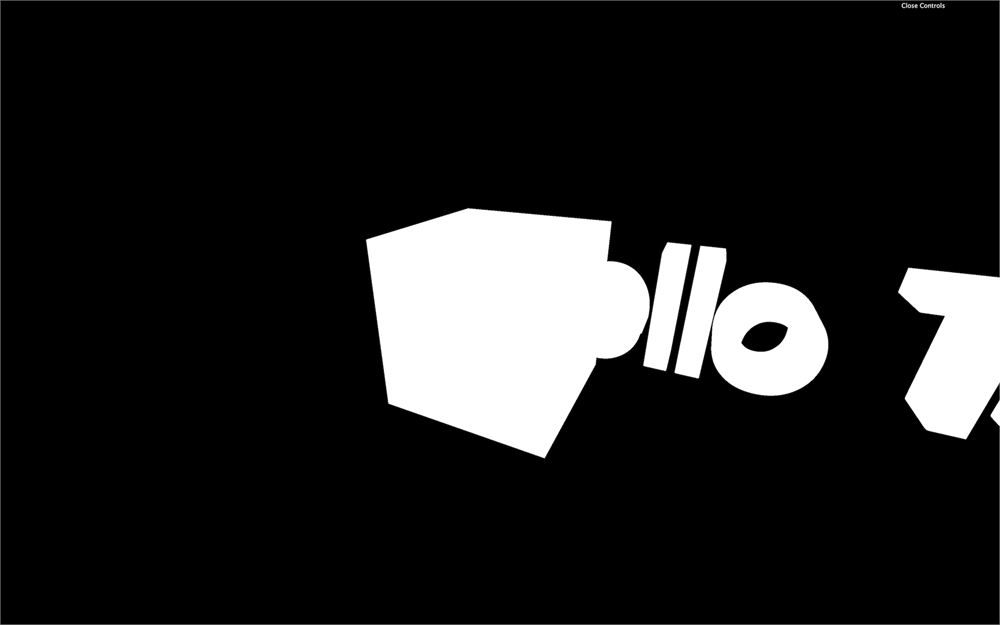
你应该会得到一个还需要改进的白色 3D 文本。
首先,去掉那个立方体。它的作用只是确保一切正常。
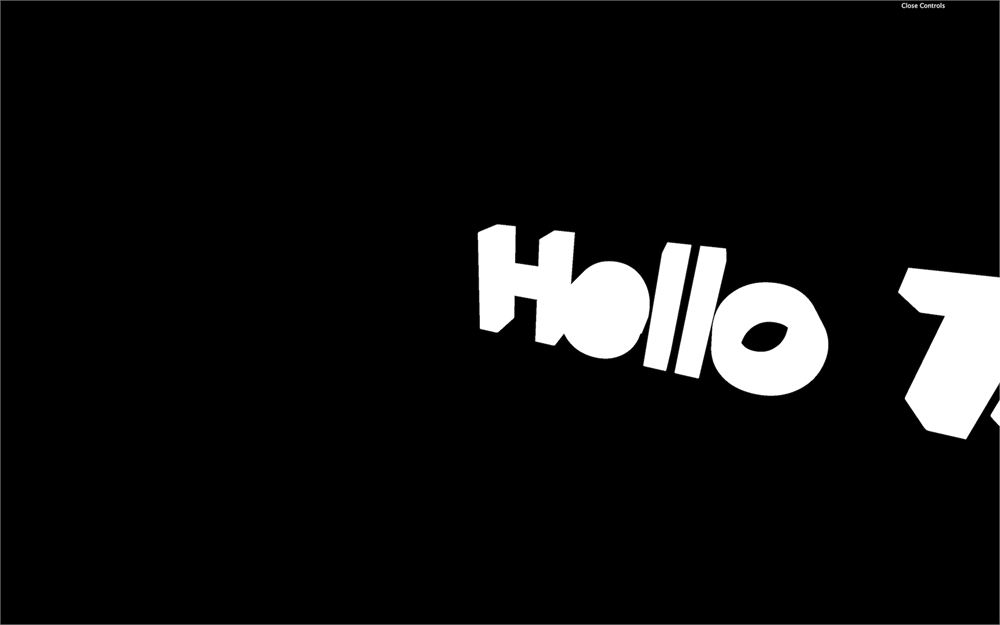
如果你想看到点酷的东西,给你的材质加上 wireframe: true。
const textMaterial = new THREE.MeshBasicMaterial({ wireframe: true })
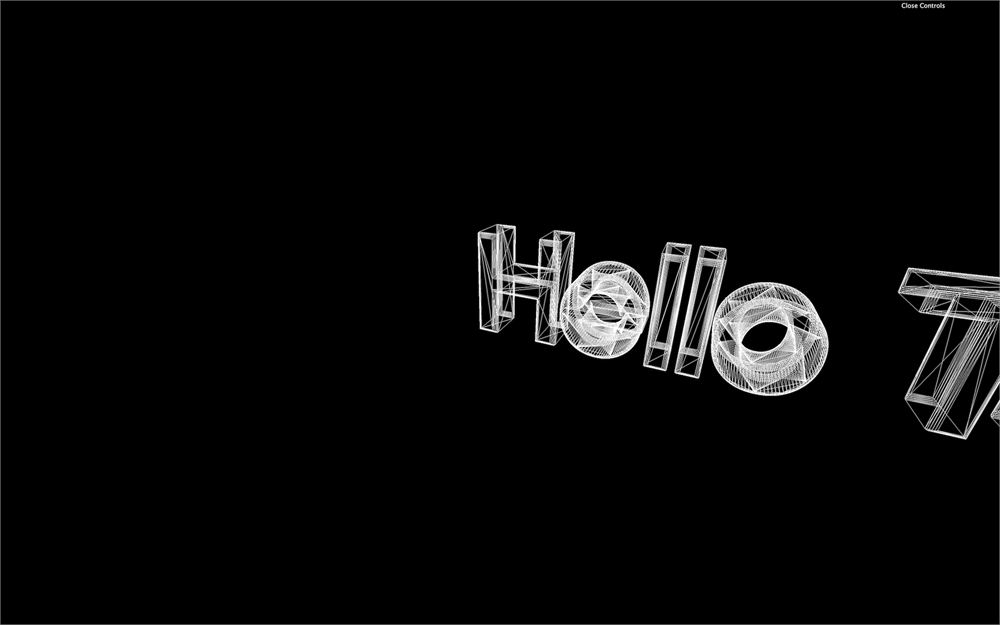
你现在能看到几何体是怎么生成的,这里有一大堆三角形。创建文本几何体对计算机来说既漫长又困难。避免太频繁地创建它,并通过降低 curveSegments 和 bevelSegments 属性来尽量让几何体保持低多边形。
当你对细节程度满意之后,把 wireframe 移除。
让文本居中
让文本居中有好几种方式。一种是用 bounding。bounding 是与几何体关联的信息,它告诉引擎该几何体占用多大空间。它可以是盒子或球体。
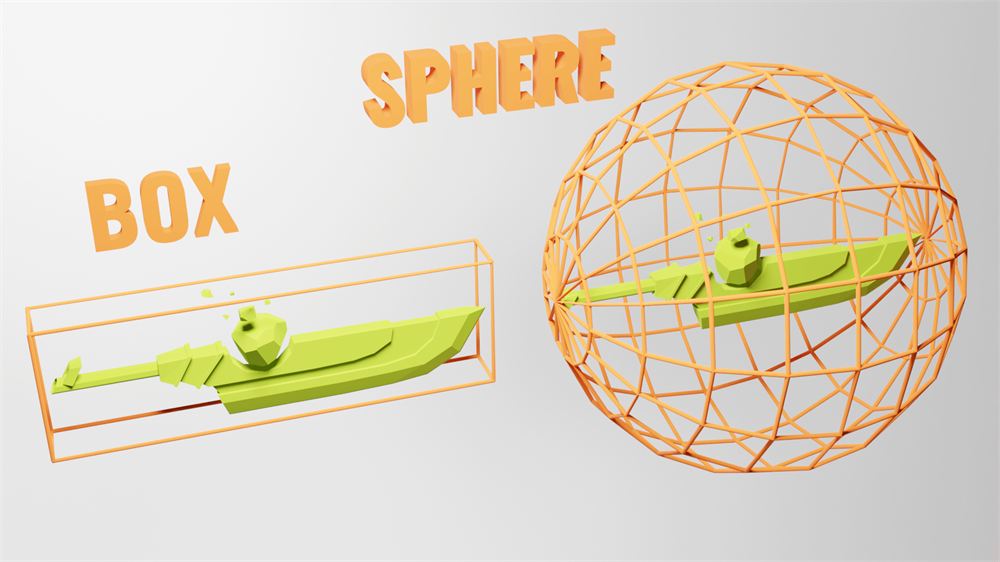
你实际上看不到这些 bounding,但它帮助 Three.js 轻松地计算物体是否在屏幕上,如果不在,物体甚至不会被渲染。这叫做视锥剔除(frustum culling),但这节课不讨论这个主题。
我们想要的是用这个 bounding 来知道几何体的大小并让它重新居中。默认情况下,Three.js 使用球体 bounding。而我们要的是一个盒子 bounding,那样更精确。要做到这一点,我们可以通过调用几何体的 computeBoundingBox() 让 Three.js 计算这个盒子 bounding:
textGeometry.computeBoundingBox()然后我们可以用几何体上的 boundingBox 属性来查看这个盒子。
console.log(textGeometry.boundingBox)结果是一个叫做 Box3 的对象,它有 min 和 max 两个属性。min 属性并不像我们预期的那样在 0 处。这是由于 bevelThickness 和 bevelSize 造成的,但我们现在可以先忽略这个。
现在我们有了尺寸,就可以移动物体了。我们不移动 mesh,而是移动整个几何体。这样,mesh 仍然在场景中央,但文本几何体也将在我们的 mesh 内居中。
要做到这一点,我们可以在 computeBoundingBox() 方法之后立即对几何体使用 translate(...) 方法:
textGeometry.translate(
    - textGeometry.boundingBox.max.x * 0.5,
    - textGeometry.boundingBox.max.y * 0.5,
    - textGeometry.boundingBox.max.z * 0.5
)
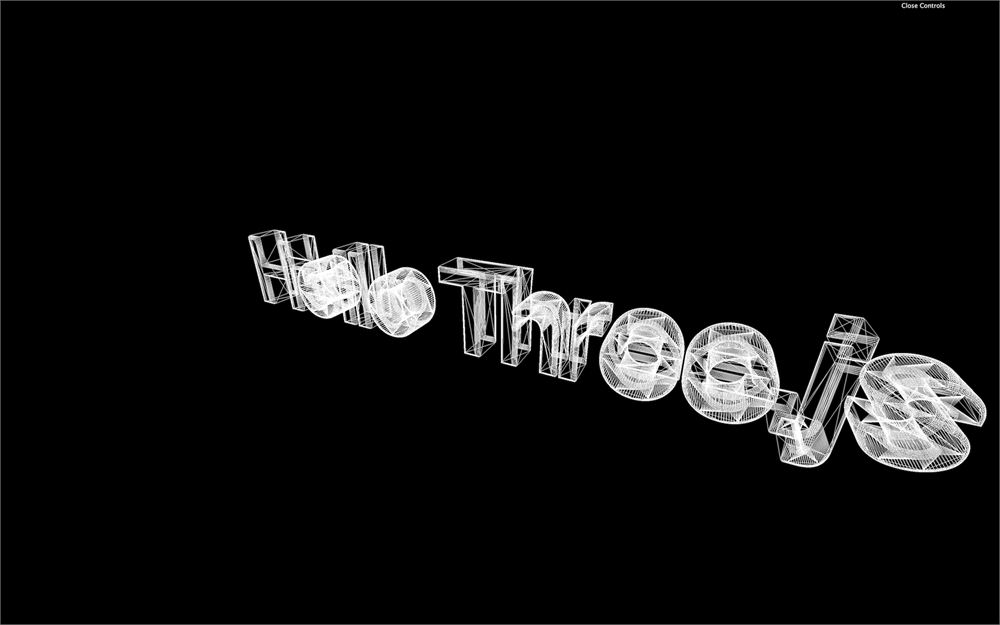
文本应该居中,但如果你想要非常精确,你还应该减去 bevelSize 0.02:
textGeometry.translate(
    - (textGeometry.boundingBox.max.x - 0.02) * 0.5, // Subtract bevel size
    - (textGeometry.boundingBox.max.y - 0.02) * 0.5, // Subtract bevel size
    - (textGeometry.boundingBox.max.z - 0.03) * 0.5  // Subtract bevel thickness
)
我们在这里做的事情,其实通过调用几何体上的 center() 方法能快得多地完成:
textGeometry.center()简单多了,不是吗?自己动手做的意义在于学习 bounding 和视锥剔除。
添加一个 matcap 材质
是时候给我们的文本添加一个好看的材质了。我们要使用 MeshMatcapMaterial,因为它看起来酷,而且性能很好。
首先,让我们选一个 matcap 纹理。我们要使用位于 /static/textures/matcaps/ 文件夹里的 matcap,但你可以自由使用你自己的 matcap。
你也可以从这个仓库下载一个 https://github.com/nidorx/matcaps。别花太多时间选择!如果不是用于个人用途,请确保你有使用它的权利。你不需要高分辨率的纹理,256x256 就绰绰有余了。
我们现在可以用代码中已有的 TextureLoader 加载纹理:
const matcapTexture = textureLoader.load('/textures/matcaps/1.png')用作 map 和 matcap 的纹理本应采用 sRGB 编码,我们需要通过把它们的 colorSpace 设为 THREE.SRGBColorSpace 来告知 Three.js:
const matcapTexture = textureLoader.load('/textures/matcaps/1.png')
matcapTexture.colorSpace = THREE.SRGBColorSpace
我们现在可以用漂亮的 MeshMatcapMaterial 替换丑丑的 MeshBasicMaterial,并通过 matcap 属性使用我们的 matcapTexture 变量:
const textMaterial = new THREE.MeshMatcapMaterial({ matcap: matcapTexture })
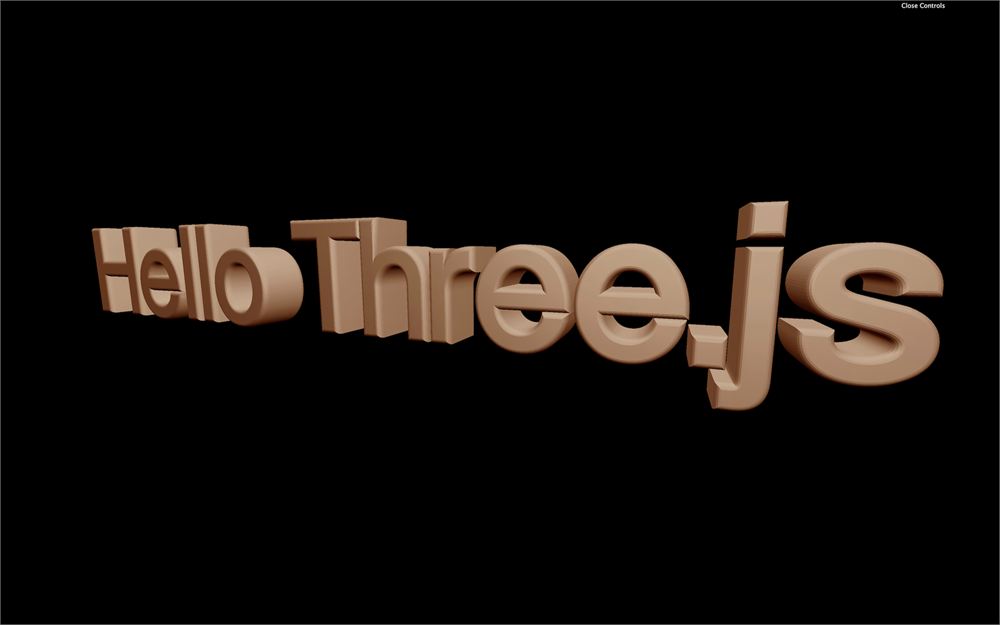
你现在应该有一个质感很酷、很可爱的文本。
添加物体
让我们添加一些漂浮在周围的物体。为此,我们将在循环函数里创建甜甜圈。
在成功回调函数中、紧跟在 text 部分之后,添加这个循环:
for(let i = 0; i < 100; i++)
{

}
我们本可以在成功回调函数外面做这件事,但出于一个你稍后会明白的好理由,我们需要让文本和物体在同一个地方创建。
在这个循环里,创建一个 TorusGeometry(甜甜圈这么专业的名词)、和文本一样的材质,以及 Mesh:
for(let i = 0; i < 100; i++)
{
    const donutGeometry = new THREE.TorusGeometry(0.3, 0.2, 20, 45)
    const donutMaterial = new THREE.MeshMatcapMaterial({ matcap: matcapTexture })
    const donut = new THREE.Mesh(donutGeometry, donutMaterial)
    scene.add(donut)
}
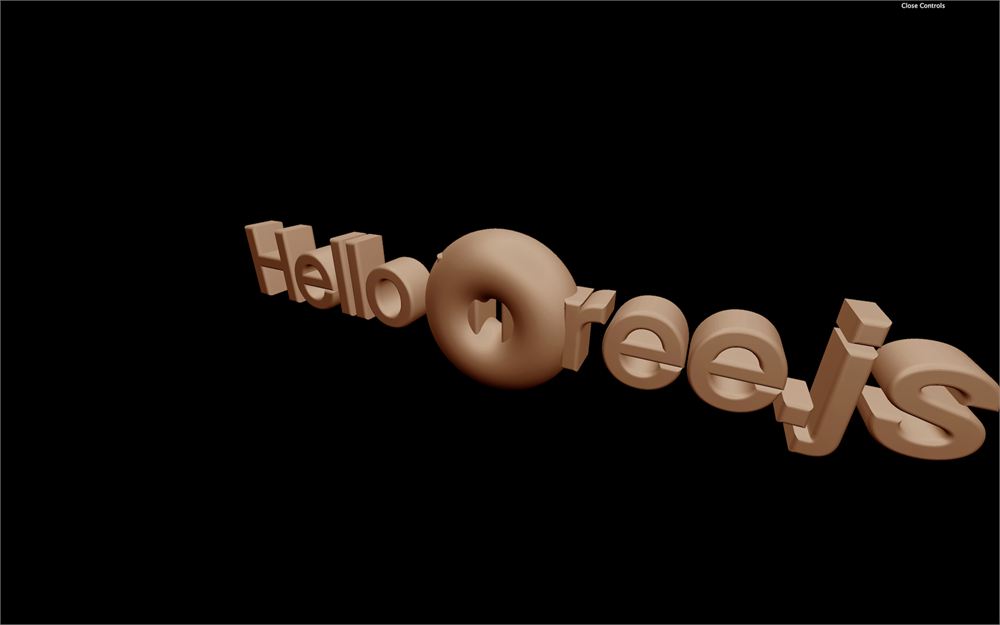
你应该会得到 100 个全部挤在一起的甜甜圈。
让我们给它们的位置添加一些随机性:
donut.position.x = (Math.random() - 0.5) * 10
donut.position.y = (Math.random() - 0.5) * 10
donut.position.z = (Math.random() - 0.5) * 10
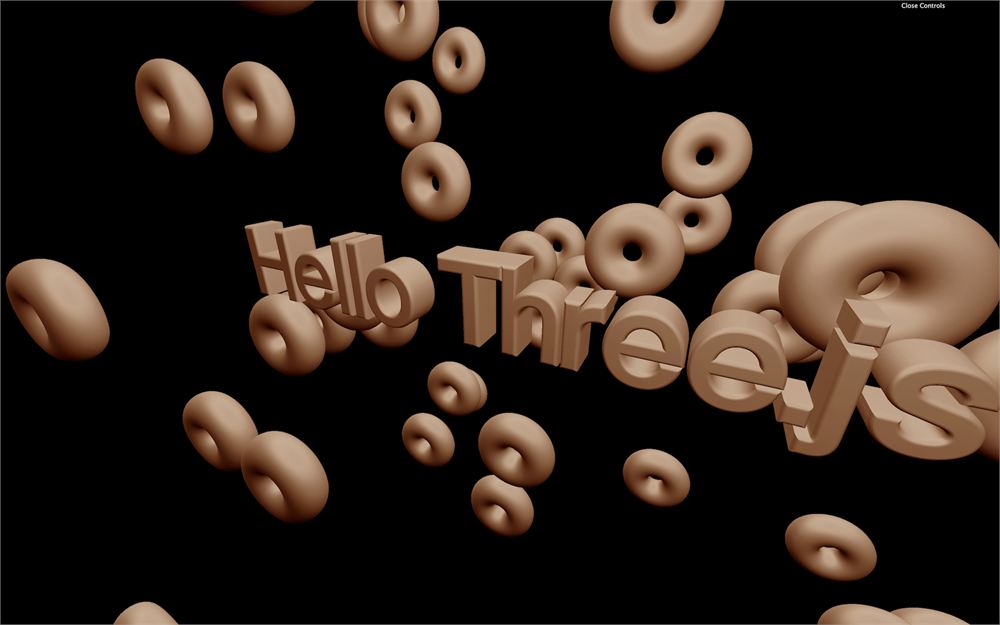
你应该会得到 100 个分散在场景里的甜甜圈。
给旋转添加随机性。不需要旋转全部 3 个轴,而且因为甜甜圈是对称的,半圈就足够了:
donut.rotation.x = Math.random() * Math.PI
donut.rotation.y = Math.random() * Math.PI
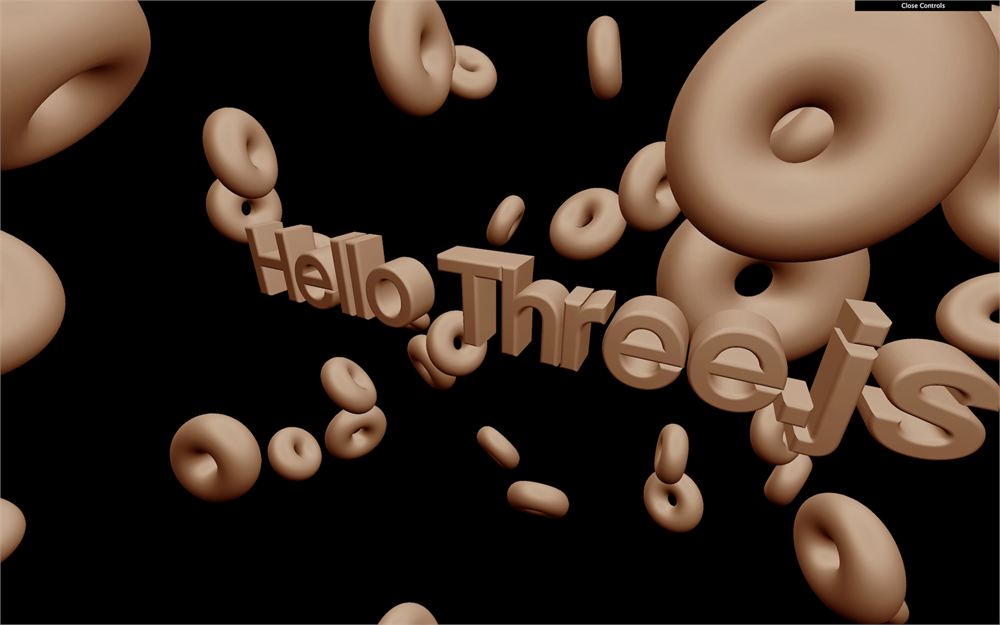
甜甜圈应该会朝各个方向旋转。
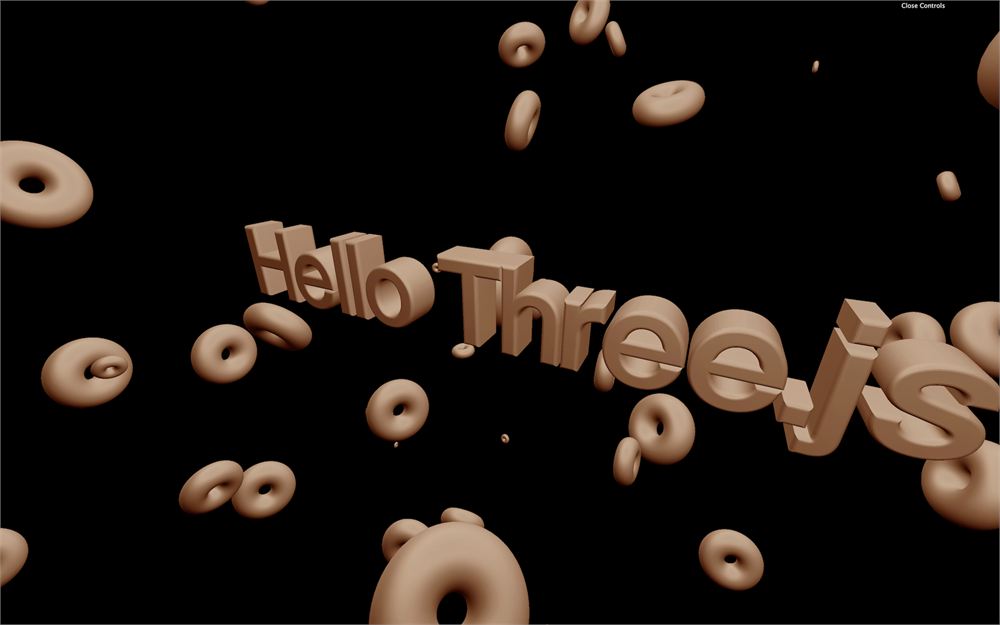
最后,我们可以给缩放添加随机性。但要小心,3 个轴(x、y、z)必须使用相同的数值:
const scale = Math.random()
donut.scale.set(scale, scale, scale)
优化
我们的代码还可以优化。正如我们在之前的课程中看到的,我们可以在多个 Mesh 上使用同一个材质,但我们也可以使用同一个几何体。
把 donutGeometry 和 donutMaterial 移到循环外面:
const donutGeometry = new THREE.TorusGeometry(0.3, 0.2, 20, 45)
const donutMaterial = new THREE.MeshMatcapMaterial({ matcap: matcapTexture })

for(let i = 0; i < 100; i++)
{
    // ...
}你应该会得到同样的结果,但我们还能更进一步。text 的材质和 donut 的一样。
让我们移除 donutMaterial,把 textMaterial 重命名为 material,并在 text 和 donut 上都使用它:
const material = new THREE.MeshMatcapMaterial({ matcap: matcapTexture })

// ...

const text = new THREE.Mesh(textGeometry, material)

// ...

for(let i = 0; i < 100; i++)
{
    const donut = new THREE.Mesh(donutGeometry, material)

    // ...
}
我们还可以更进一步,但关于优化有专门的课程。
继续前进
如果你愿意,你可以添加更多形状,让它们动起来,甚至可以试试其他的 matcap。